
Contents
How Layout Settings Work
| Applies to: | |||
|---|---|---|---|
| Dynamic | ✔ Report Studio | Client Portal | |
These Report Studio settings allow you to customize the layout for a module.
Section Layout
Use Section Layout to control how borders appear between individual modules in your report.
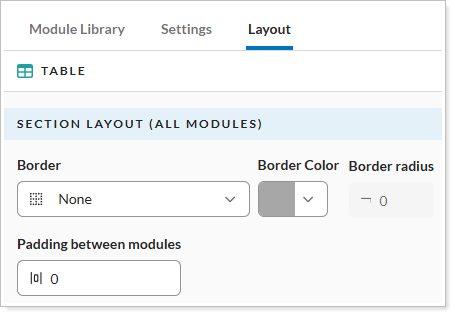
Border Type
Select the border type to apply to the selected module.
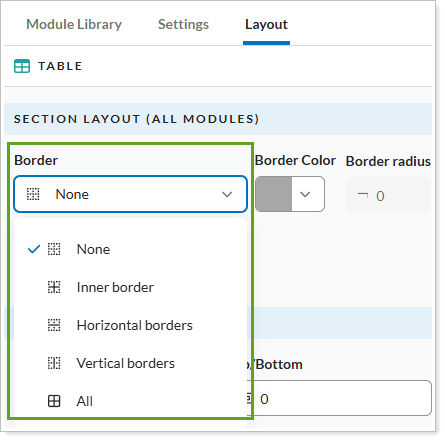
You can choose:
-
None. Removes all borders from the module.
-
Inner border. Adds a border along the module’s inner edge.
-
Horizontal borders. Adds horizontal borders to the module.
-
Vertical borders. Adds vertical borders to the module..
-
All. Adds borders to all sides of the module.
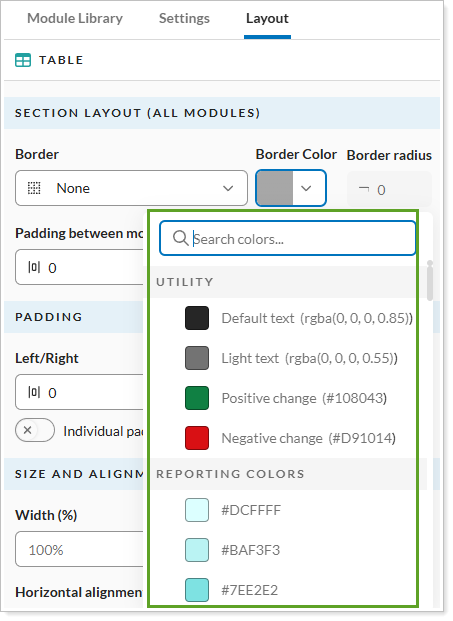
Border Color
Select one of the available color options or enter the hexadecimal color value in the Search color box under Border Color.The most recently used colors will appear under Reporting Colors.
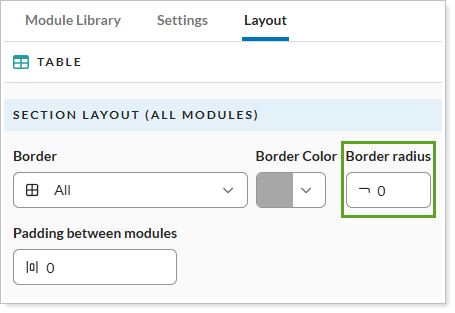
Border radius
Set the radius for the module you've selected. This option is only available when you select All from the Border Type list.
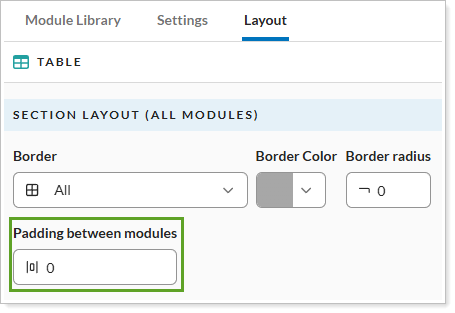
Padding between modules
Set the amount of space between modules in a section.
Padding
Use Padding to set the amount of space between the content of a cell and the border or the space between columns, bars, and lines.
General Module padding
To customize the left, right, top, and bottom padding, turn on Individual padding toggle on. Enter the desired values for each option.


To use the same padding for left/right and top/bottom, turn off Individual padding.

important
These padding settings apply to all modules except for the Column/Bar/Line module.
Column/Bar/Line module
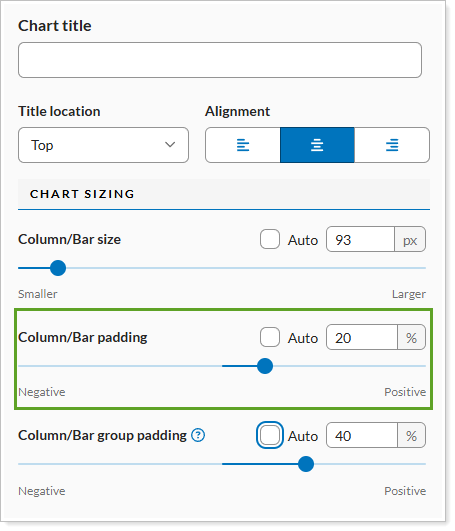
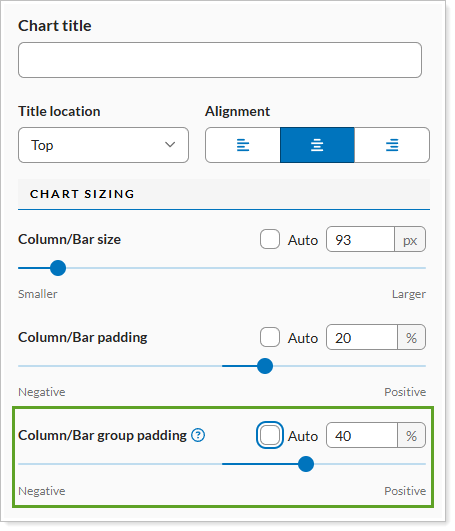
To customize the column/bar or column/bar group padding, you can enter the numerical value or select Auto to allow Report Builder to determine the ideal padding for your chart.
Chart/bar/line padding
Chart/bar/line group padding
Size and Alignment
Use the Size and Alignment section to set the size of the module in relation to the page and the position of the text.

Width
This field sets the width of the module table in relation to the page.
When you set the width to 100%, the table will cover 100% of the page

When you set the width set to 75%, the module will cover 75% of the page.

Horizontal alignment
You have three options for alignment of the text in the module.
- Left Justified
- Centered
- Right Justified