
Contents
Introduction
UNABLE TO UPDATE (NO ACCESS)
The integration between Tamarac CRM and Laser App allows you to easily push data from Tamarac CRM to Laser App in a single step.
Tamarac CRM fully supports both Laser App's desktop version and their web version (Laser App Anywhere). Administrators at your firm can choose which version of Laser App each user connects to, allowing flexibility across your firm. The integration for Laser App Anywhere works the same as the desktop version, saving time with custodian form fill.
Prerequisites
For integration to work properly, the following prerequisites must be met:
-
You must have either the desktop or the web version of Laser App installed on your computer with appropriate licenses and logins established.
-
You must have access to Tamarac CRM.
-
Anniversary must be populated in order for Spouse information to export to Laser App
If these requirements are met, your administrator can set your integration to the Laser App version you're using.
Set Up Laser App Integration
If Laser App integration has been enabled, users will see a Launch Laser App icon in the options menu at both the contact and financial account level. This icon will launch the Laser App version the administrator configured it for. If no integration has been enabled, there will be no Laser App icon.
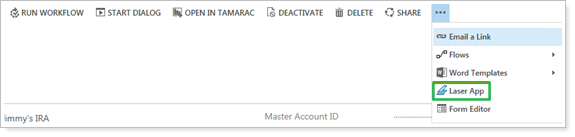
Administrators can set the Laser App integration for each user so that they connect to either the desktop or the web version, or the integration can be disabled.
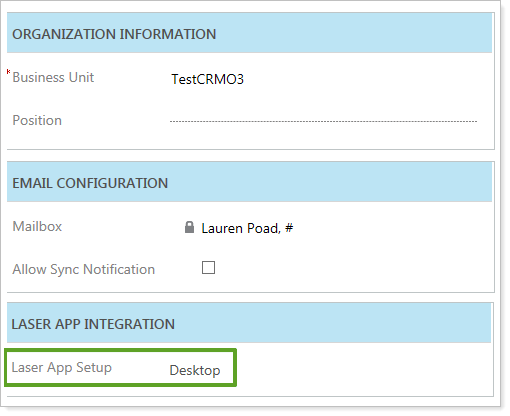
To set up Laser App integration for a user (if you have administrator rights), follow these steps:
-
On the Tamarac CRM Setup menu, click Security.
-
Click Users.
-
Click on a user and in the Laser App Setup list, select one of the following option:
NoneDisables integration, and the Launch Laser App icon won’t show on the menu.
Desktop The Launch Laser App icon launches the desktop version.
Anywhere The Launch Laser App icon launches the web version.
Integration Details
When you click the Launch Laser App icon, Tamarac CRM will export the contact information associated with the Account or Financial Account to Laser App, following these rules:
| Data Sent to Laser App | Rules for Export |
|---|---|
| Basic client information |
If there is no primary contact defined on either the financial account or the financial account's household, no basic client information will be sent. |
| Basic spouse information |
If no secondary contact is populated on the account or financial account, no basic spouse information will be sent. |
| Client address | Use Address1 or Address2 from the contact's associated account (depending on the Current Mailing Address identified) if a contact is identified for the basic spouse information. |
| For client and spouse employer |
|
Exported Data
| Tamarac CRM Entity | Field | Laser App Field |
|---|---|---|
| Account | addressN_line1 | ClientAddress |
| Account | addressN_line2 | ClientApt |
| Account | addressN_city | ClientCity |
| Account | addressN_stateorprovince | ClientState |
| Account | addressN_postalcode | ClientZip |
| Account | addressN_country |
ClientCountry SpouseCountry |
| Contact | If mobilephone exists on the form, then use mobilephone; otherwise, use telephone3 |
ClientCellPhon SpouseCellPhone |
| Contact | birthdate | ClientDOB SpouseDOB |
| Contact | tam_driverslicensenumber | ClientDrvLic SpouseDrvLic |
| Contact | tam_driverslicexpdate | ClientDrvLicEx SpouseDrvLicExp |
| Contact | emailaddress1 |
ClientEmail SpouseEmail |
| Contact | firstname | ClientFirstNam SpouseFirstName |
| Contact | middlename |
ClientMI SpouseMI |
| Contact | lastname |
ClientLastNam SpouseLastName |
| Contact | familystatuscode | ClientMaritalStatus |
| Contact | telephone2 | ClientHomePhone |
| Contact | jobtitle |
Client Occupation SpouseOccupation |
| Contact | tam_passportid |
Client Passport SpousePassPort |
| Contact | tam_passportexpdate |
ClientPPExp SpousePPExp |
| Contact | salutation |
ClientSalutation SpouseSalutation |
| Contact | Gendercode |
ClientSex SpouseSex |
| Contact | tam_ssn |
ClientSSN SpouseSSN |
| Contact OR Employer | Contact.tam_company | ClientEmployerName |
| Financial Account | tam_finacialaccountid | Client_id |
| Financial Account | ownerid | AssignedRep |