
Contents
Client Portal & Reporting
Add Dollar Signs to Dashboard Tiles 
Since we completely overhauled the client portal in July, we've been inundated with positive feedback. However, many of you let us know via the Suggestion Box that you wanted dollar signs to appear in front of dollar amounts on dashboard tiles. We heard you loud and clear.
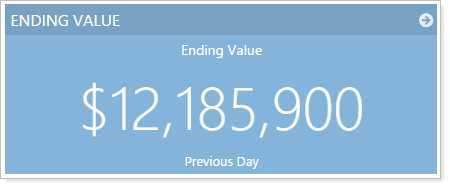
Before this release, dollar amounts appeared just as they do on all other reports, with no dollar signs. With this release, dollar signs will appear in front of dollar amounts on dashboard tiles. There's no setting to enable – this change will occur automatically.
Bon Voyage to Classic Views for Client Portals
Classic views for client portals served us well for many years, but it's almost time to say goodbye. The new client views we released in July offer many improvements that all of you have been raving about. This year, classic views will go away forever, so make sure you've transitioned to the new client views. To learn more about getting started on the new client views, visit Setting Up Client Portals.
With this release, once all classic client views are no longer assigned to clients, the Classic Client Views menu item will no longer appear in Advisor View and we'll delete any Saved Searches associated with classic client views. If you anticipate you'll mostly be transitioned to the new client views by the February release, we recommend creating Saved Searches for the new client views that mimic your classic client view Saved Searches.
Automatic Assignment of Households for Accounts & Groups Without a Primary Household
Sometimes when running the Net Worth report, you may receive the informational message, "No data available. The Net Worth report is only available for individual accounts or groups assigned to a Primary Household." This message may display when the account is assigned to multiple Households, but it has not been assigned a primary Household.
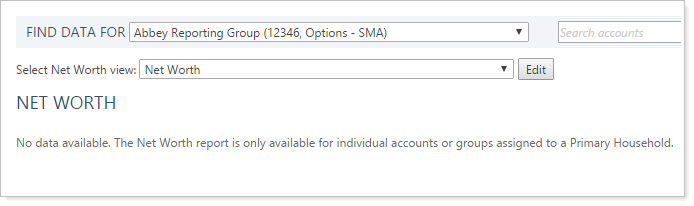
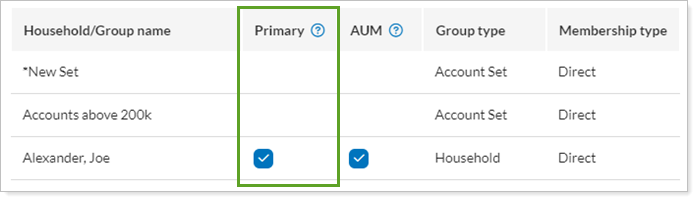
With this release, we've added some functionality to prevent most of these issues from occurring in the future. When you add a new account to a Household—and the account has never been assigned to any Household—Advisor View will now automatically set the current Household as the primary Household. This change guarantees that the account will have a primary Household.
Manual Securities and Committed Capital
New Look for the Manual Securities Snapshots Page
We overhauled the Manual Securities Snapshots page to give it a fresh look. Throughout the redesign process, we also added some features that you've been asking for, including:
-
Column and sorting options are saved automatically
-
Streamlined editing of securities—with many performance improvements
-
Better use of screen space
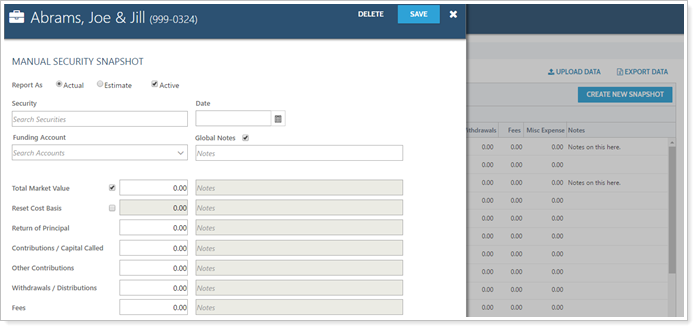
As we mentioned when we rolled out the new look for the Accounts page, we plan to give all of Advisor View a new look; however, we realize that page redesigns may change your daily workflows. In order to limit the disruption to your work, we're releasing these changes slowly—starting with the Accounts page, and now we've extended it to the Manual Security Snapshots page.
We don't anticipate any difficulty adapting to the new design since no functionality was removed during the redesign—we simply updated the look and feel of the pages and added some new usability features.
Enter Negative Values for Manual Security Snapshots
For some alternative investments—particularly committed capital investments—fees may be charged up front, before any investments are made and before any capital is called. From the investor's perspective, the value of that investment would be negative because the total value is the fees. After the first capital call and the first investments are made, the position would eventually turn to a positive value.
Before this release, Advisor View did not accommodate initially displaying the value as a negative amount because you could only enter manual securities as positive values.
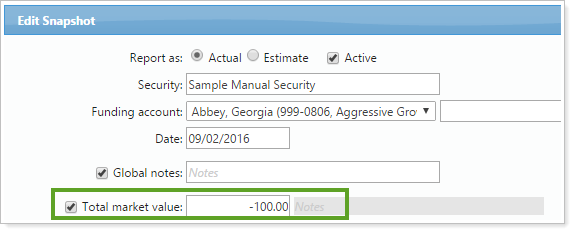
To support this scenario and many others, when entering the total market value for your manual securities, you now have the option to enter negative values. To enter a negative value, simply type a dash before the number in the Total market value box.
Upload Committed Capital
If you use committed capital, entering capital in bulk through the user interface can sometimes be a time-consuming task. To make the process easier, we're introducing the ability to bulk upload committed capital. You can upload this information on the new Account Committed Capital upload data set.
Below is an example of the upload data set:
| Committed Capital | Account Number | Symbol |
|---|---|---|
| 100 | 999-0803 | COMCAP |
| 500 | 999-0806 | COMCAP |
| 500000 | 999-0808 | COMCAP |
We've also added an Account Committed Capital bulk report that you can download as well. You can download the bulk report, make your changes, and then upload it back into Advisor View.
Funding Accounts: Cash in Transit for Manual Security Snapshots
When working with manual security snapshots, there is often a time gap between when a manual security related cash transaction is executed from a custodial account, and when the asset itself posts the corresponding transaction. As a result, the total value of the client's accounts will dip until both sides of the transaction post.
We've made revisions to how we handle cash in transit for the following scenarios:
More Efficient Handling of Outflows
Let's say that you have two accounts (Account and Funding Account) worth $100,000. You enter a manual security snapshot in Account for Security XYZ with a withdrawal of -$10,000. You specify the funding account as Funding Account and set the as-of date for "today's" date. Three days later, the contribution hits Funding Account for $10,000.
Before this release, Advisor View could not easily workaround this dip in account value for Account. Until the contribution hits, Account would show as -$10,000 less than it is, essentially displaying a dip in account value, which would be visible in the Account Value vs. Net Investment chart on the Capital Flows report.
To solve for this scenario, Advisor View now creates Cash In Transit transactions for manual security outflows. Essentially, when you enter the manual security snapshot, Advisor View will create the necessary contribution or withdrawal as "Cash in Transit" on the as-of date.
Let's revisit the same scenario as before. With this release, here's how Advisor View will create the transactions:
-
When you create the snapshot, Advisor View generates the withdrawal and offsetting Cash in Transit transactions.
| Account | Funding Account | Total | |
|---|---|---|---|
| Start Value | $100,000 | $100,000 | $200,000 |
| Withdrawal | -$10,000 | ||
| Cash In Transit | +$10,000 | ||
| End Value | $100,000 | $100,000 | $200,000 |
-
On the third day, Advisor View will match the $10,000 snapshot withdrawal in Account to the $10,000 contribution that comes in for Funding Account and the Cash in Transit is cleared.
| Account | Funding Account | Total | |
|---|---|---|---|
| Start Value | $100,000 | $100,000 | $200,000 |
| Contribution | +$10,000 | +$10,000 | |
| Cash in Transit | -$10,000 | -$10,000 | |
| End Value | $90,000 | $110,000 | $200,000 |
This new feature means that the client will always be "whole" and will not see dips in value. However, it's important to ensure that your accounts aren't accumulating unnecessary Cash in Transit - for example, from checks that don't clear. Cash in Transit balances for manual security outflows will remain in perpetuity until they are matched with a corresponding inflow in the funding account. If the inflow never hits the funding account, you can remove the Cash in Transit by removing the funding account from the snapshot that created it.
The Cash in Transit transaction will post to Advisor View.
Funding Accounts: Handling of Inflows for Future-Dated Manual Security Snapshots
Let's say you have two accounts (Account and Funding Account) worth $100,000. You enter a manual security snapshot in Account for Security XYZ with a contribution of $10,000. You specify the funding account as Funding Account and set the as-of date for five days from "today's" date. Three days later, a withdrawal hits Funding Account for -$10,000.
Before this release, Advisor View did not automatically solve for this scenario. With this release, Advisor View will now automatically create the following transactions:
-
When you create the transaction, Advisor View will not create any transactions (this is because the as-of date is set for five days from now).
| Account | Funding Account | Total | |
|---|---|---|---|
| Start Value | $100,000 | $100,000 | $200,000 |
| End Value | $100,000 | $100,000 | $200,000 |
-
Three days later, Advisor View will match the -$10,000 withdrawal in Funding Account to the future contribution from the manual security snapshot in Account and create a deposit for $10,000 for Cash in Transit in Account. This will prevent the client from seeing a dip in value.
| Account | Funding Account | Total | |
|---|---|---|---|
| Start Value | $100,000 | $100,000 | $200,000 |
| Withdrawal | -$10,000 | -$10,000 | |
| Cash in Transit | +$10,000 | +$10,000 | |
| End Value | $110,000 | $90,000 | $200,000 |
-
On the fifth day (the as-of date for the snapshot), Advisor View will generate the $10,000 contribution in Account. Advisor View will also generate a withdrawal in Account for -$10,000 to back out the Cash in Transit.
| Account | Funding Account | Total | |
|---|---|---|---|
| Start Value | $110,000 | $90,000 | $200,000 |
| Contribution | +$10,000 | +$10,000 | |
| Cash in Transit | -$10,000 | -$10,000 | |
| End Value | $110,000 | $90,000 | $200,000 |
Advisor View will look back 45 days for matching transactions. The Cash in Transit transaction will post to Advisor View.
Integrations
Fidelity WealthCentral® Renamed to Fidelity Wealthscape™
With this release, we've replaced all references to Fidelity WealthCentral with Fidelity Wealthscape.
On December 16 of 2016, Fidelity Clearing & Custody Solutions introduced Wealthscape, the gateway to your total advisor platform. Wealthscape is a rebranded version of the Streetscape® and WealthCentral® platforms, designed to deliver increased advisor productivity and collaboration. Beginning on December 12 of 2016, Streetscape and Wealthscape users experienced a new log in process – and we've updated Advisor View to align with this new branding.
As Fidelity's next-generation technology centers on an enhanced workstation, Wealthscape serves as a gateway to connect with Fidelity tools and third-party solutions. Helping you digitize, improve productivity and collaboration, and focus on what drives value to clients.
Use the Custodian As the Source for Gains & Losses
We're excited to announce that we've now extended the custodian realized gains and loss reporting to more reports, including the Comparative Review report and the Account Information bulk report.
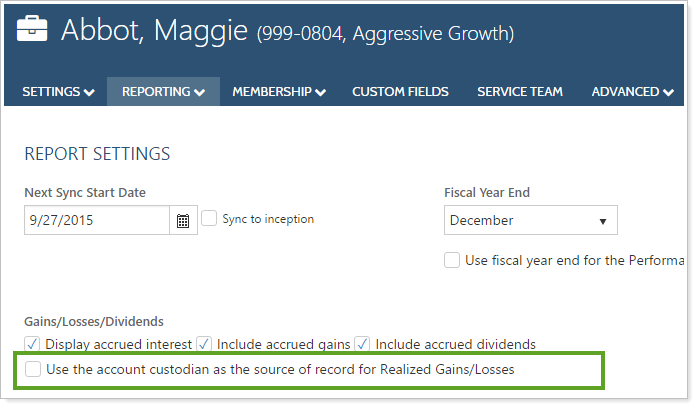
As of this release, Tamarac supports the following custodians: Pershing, Schwab, and TD Ameritrade. Data is updated as it's received from the custodian. For more information, visit Tamarac Cost Basis Offering for Advisor View.
If you take advantage of this new setting, you can see capital gains distributions combined with custodian-sourced realized gains and loss data on the reports below:
-
Realized Gains and Losses(PDF and Dynamic)
-
Comparative Review(PDF and Dynamic)
-
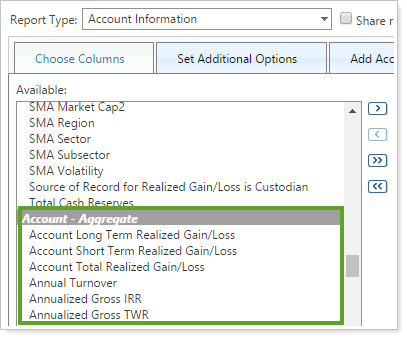
Account Information Bulk Report(The Account - Aggregate section)
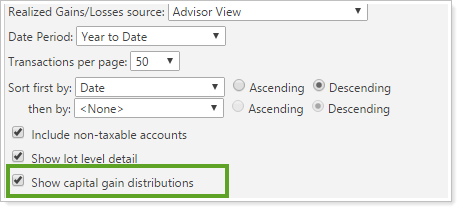
We have also added the ability to include capital gains distributions with custodial realized gain and loss data on all reports listed above. In the past, Advisor View prevented you from showing capital gains distributions when using the custodian as the source of record.
Usability
Accounts Save Ten Times Faster
Advisor View now saves your accounts 10 times faster than before! You'll notice these performance improvements when you're saving accounts on the Accounts page and when you're uploading accounts.
See More At-A-Glance Information on the Household page and Edit Household Panel
When working on the Household page and the supporting panels, we understand that you need as much information as possible at your fingertips. Based on your feedback, we've added the following columns to the Households page:
-
Managed Value (this column was previously named Total Value)
-
Unmanaged Value
-
Total Value
-
Net Worth

We also added the Total Value column to the Direct Members and All Members pages of the Edit Household panel.
Learn More - Watch the Release Video