
Contents
Introduction
You can make more informed decisions and streamline workflows by accessing data directly from Pershing within Tamarac Reporting.
With this integration, you can:
-
Set the custodian as the source of record for these reports:
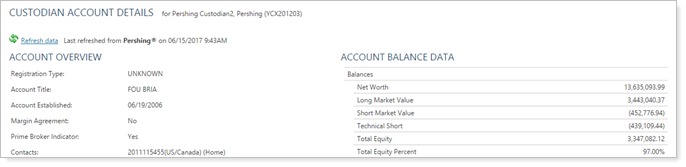
- Custodian Account Details report. Available through integration only. Allows you to see balance data, contacts, and holder information directly from Pershing.
- Holdings report
- Transactions report
- Realized Gain/Loss report
-
See Pershing documents directly in the Tamarac document vault for you and, optionally, your clients. This data integration can be seen within Tamarac Reporting as well as in client portal views for the reports listed above. For more information, see See Custodian Files in the Document Vault.
Enrollment
To request the Pershing integration:
-
Contact your Pershing representative and ask to enable the Tamarac integration. Your Pershing representative will provide you with a User ID.
-
Contact Account Management at TamaracAM@envestnet.com to provide them with the User ID.
-
Tamarac Account Management will enable this functionality for your firm.
Run The Custodian Account Details Report
With the Custodian Account Details report, you gain instant access to Pershing account information, including phone numbers, addresses, account overview information, email addresses, and more.
To open the Custodian Account Details report:
-
On the Reports menu, under Custodian Reports, click Custodian Account Details.
-
In the Find Data For list, search for and select the desired account.
-
The report appears on your screen.
See Pershing Data on Tamarac Reports
With this integration, you gain instant access to Pershing data that can be displayed in Tamarac Reporting reports.
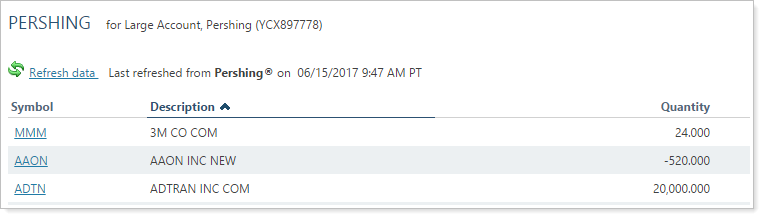
For details and information about how to see custodian data in Tamarac reports, see Set a Custodian as the Source of Data for a Report.
See Pershing 1099s, Trade Confirmations, Statements, and Notification Documents in the Document Vault
The Pershing integration allows you and, optionally, your clients to see client statements, tax documents, trade confirmations, and notification documents stored on the Pershing servers in the Tamarac document vault.
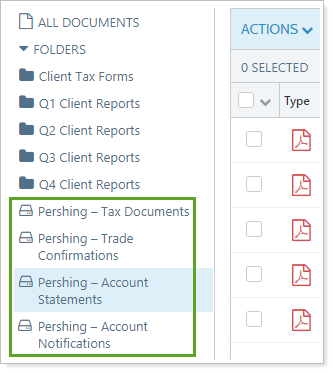
For information on using the document vault to view custodian files, see See Custodian Files in the Document Vault.
Before You Start: User Requirements
To see Pershing folders and files in the document vault, Tamarac users must have both of the following enabled:
-
The Pershing integration.
-
The Documents | Vault page permission for their role.
Data Storage Policy
Tamarac never stores the files displayed with this integration. Instead, Pershing continues to store the files on their servers, and the Tamarac document vault provides a secure link to those files directly on the Pershing servers.
Set Up Document Vault Integration with Pershing
Before you start seeing Pershing documents in the Tamarac document vault:
-
Contact your account manager at Pershing Advisory Solutions.
-
Request Download Investor Docs or eDocs API.
-
Once Pershing has completed their setup, you'll automatically start seeing Pershing files in your Tamarac document vault.
Pershing Document Vault for Advisors
To access the Pershing folders in Tamarac:
-
On the Documents menu, click Vault.
-
In the Find Documents For list, select a client or Household that has Pershing set as their custodian.
-
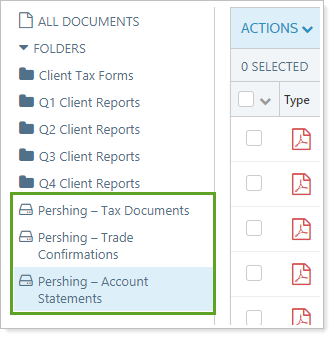
Click on the desired Pershing folder to view files.
Pershing Document Vault for Clients
You can allow clients to see their Pershing files in their client portal document vaults. When you enable Pershing documents for a client's portal, they will see Pershing files for all the clients in their Household.
This enhances a client's experience, allowing the client to access custodian files by simply logging in to the client portal document vault.
We recommend that you only enable Pershing documents for clients who have Pershing accounts. When you enable the Pershing document vault integration for clients who don't have Pershing accounts, those clients will see empty folders.
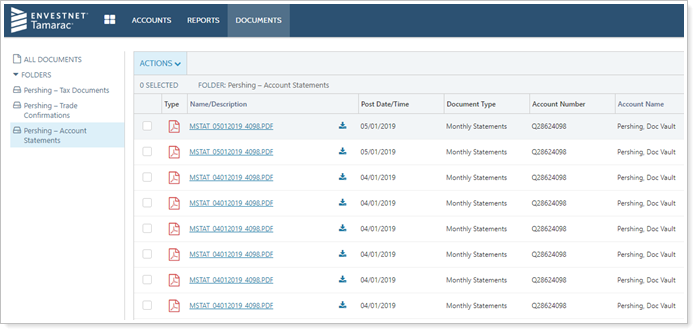
To enable client access to their Pershing files:
-
On the Accounts menu, click Clients/Client Portals.
-
Click the name of the client you want to give Pershing folder permissions.
-
On the Client Portal panel, select Enable Pershing Documents.
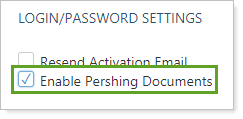
With this setting enabled, your clients will see the same Pershing folders in their document vaults that you see.
Manage Pershing Document Vault Folders
Manage Pershing files and folders with the following standard document vault folders actions:
-
Rename and reorder the Pershing folders.
-
View files within the document vault.
-
Download multiple files at once. When you download more than one file, all the files will be grouped into one PDF file for download.
-
Filter and sort Pershing folders by column to more quickly find files.
Pershing Document Vault Restrictions
The following restrictions apply when managing files:
-
You cannot delete Pershing integration folders.
-
You cannot delete, edit, or add labels to Pershing files.
You may notice the following limitations to searching and filtering Pershing files:
-
You cannot sort by the Name/Description or Account Name columns.
-
When searching to filter Pershing folders, the search will only filter if the search term is an exact match. For example, if you want to find account ABC123, but only search for ABC, no search results will be displayed. To find account ABC123, you must search for exactly ABC123.
For more information about managing document vault folders, see Manage Folders.