
Contents
Introduction
Envestnet Identity is an enterprise shared service that provides a single set of credentials for accessing multiple Envestnet platforms and applications.
Your Envestnet Identity Direct Login credentials are separate from the credentials you currently use to sign in to the Tamarac platform.
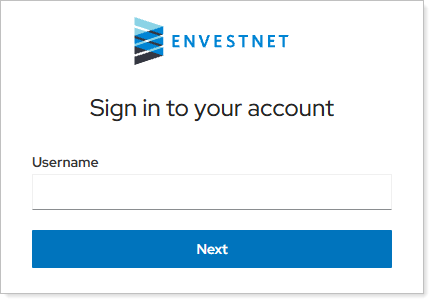
This topic provides steps for how to request, activate, and set up your Direct Login account.
Before you start
Make sure you have the following:
-
Access to the email address where you receive Direct Login emails.
-
An authenticator app on your phone, such as Okta Verify, Google Authenticator, or Microsoft Authenticator, to set up multi-factor authentication (MFA).
Activate your Direct Login account
To start creating your Direct Login credentials:
-
Contact your Tamarac Service team and request a Direct Login account.
When the request is processed, you'll receive an automated email from Envestnet Identity (noreply@idp.envestnet.com).
-
In the Account Activation email, select Activate account.
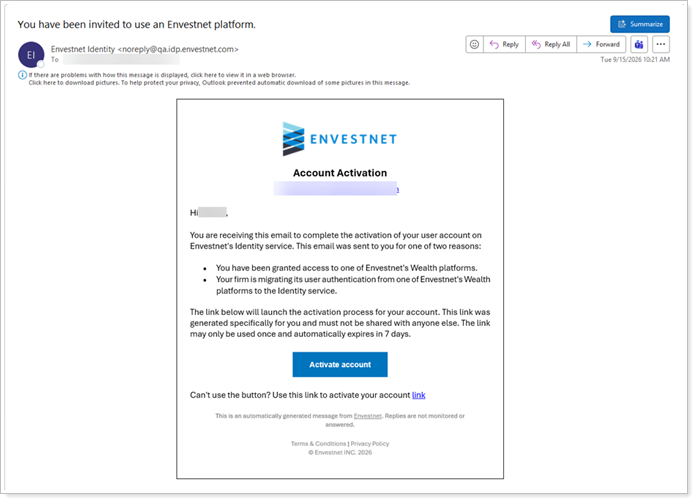
The activation email link is unique to you and expires after seven days. Do not share the link with other users. If it expires, contact your Tamarac service team to request a new activation link.
-
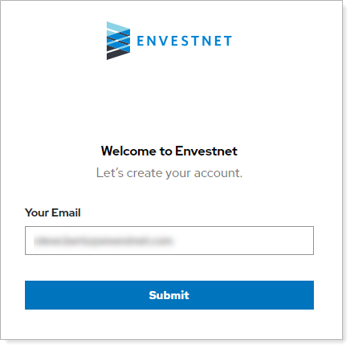
In Your Email, enter the email address where you received the account activation email, then select Submit.
-
In Username, enter a username or keep the default. You’ll use this username to sign in with Direct Login.
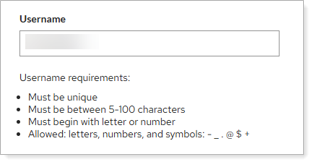
The username you choose must:
-
Be unique.
-
Be between 5 and 100 characters long.
-
Begin with a letter or number.
The username can include letters, numbers, and the following symbols:
-
-
-
_
-
.
-
@
-
$
-
*
-
-
In Enter Password, type the password you want to use.
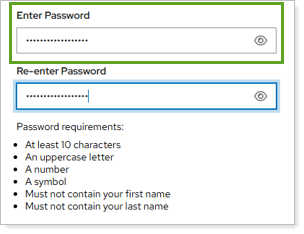
The password you choose must:
-
Be least 10 characters long.
-
Contain uppercase letter, a number, and a symbol.
-
Not include your first or last name.
-
-
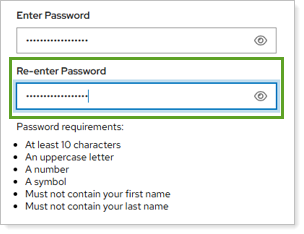
In Re-enter Password, type the same password to verify it.
-
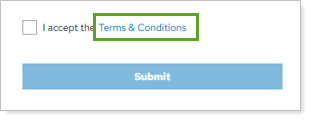
Select Terms & Conditions.
-
Review the terms and conditions and select I Agree.
-
Select I accept the Terms & Conditions, then select Submit.
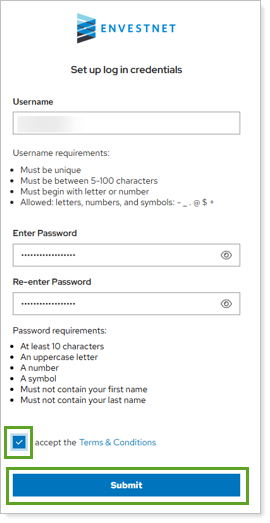
Once submitted, you set up multi-factor authentication (MFA) for your new account.
Set up multi-factor authentication (MFA)
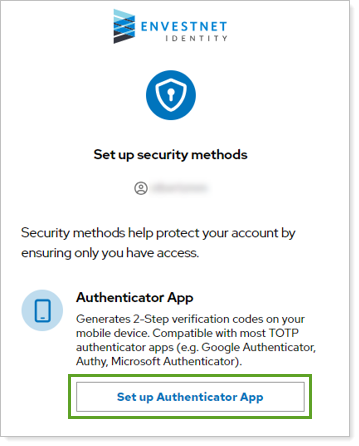
After you create your Direct Login username and password, you must set up multi-factor authentication (MFA) using an authenticator app, such as Okta Verify, Google Authenticator, or Microsoft Authenticator.
To set up MFA for your Direct Login account:
-
Select Set up Authenticator App.
-
On your mobile device, open your authenticator app.
-
In the authenticator app, add a new account, then scan the QR code displayed on the Set up an Authenticator App screen.
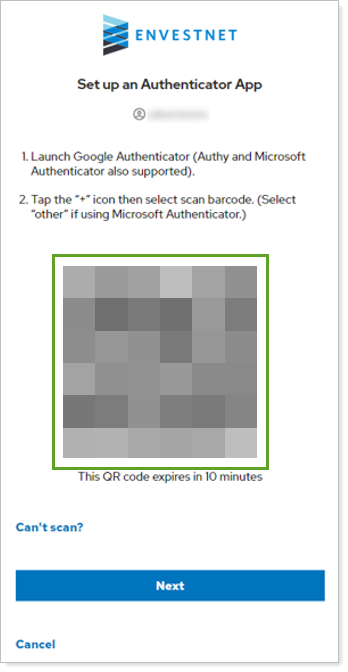
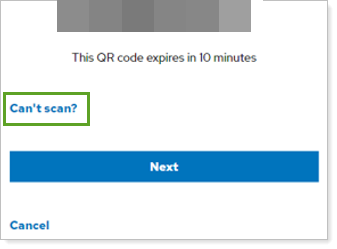
If you can’t scan the QR code, select Can't scan? and use the provided initialization key instead.
-
In Envestnet Identity, select Next. You finish the process by verifying the connection between the authenticator app and your Envestnet Identity account.
-
To verify the connection, in your authenticator app, find the current one-time code. In Envestnet Identity, under Enter Code, type in the code from your authenticator app and select Verify.
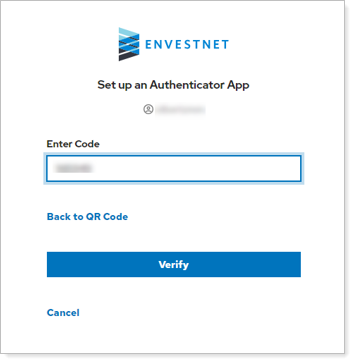
Your account becomes active after you've verified the connection. The system confirms this by sending an automated confirmation email to the same email address where you received the activation email.