
Contents
|
Steps for Getting a Premium App Step One: Contact Account Management Step Two: Provide Files to Tamarac Step Three: Create Developer Accounts for App Stores Step Four: Tamarac Adds App to App Store |
Introduction
The premium app is a customized version of the mobile app branded specifically for your firm. In the standard app, clients see the same portal theme that you set up for desktop portals. In addition to controlling the portal theme, the premium app offers the following benefits:
-
Your firm's logo on the app login page.
-
You designate the name of the app in the app store.
-
You control the look of shortcut icon.
-
Users don't need a portal code to log in to your premium app.
-
As with the standard app, you control the theme and pages the client sees when logged in.
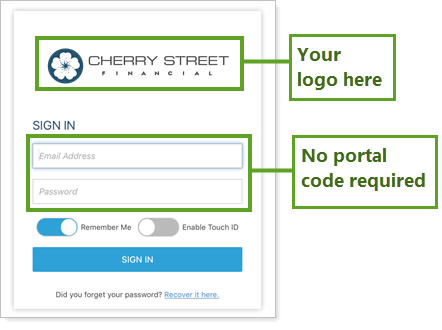
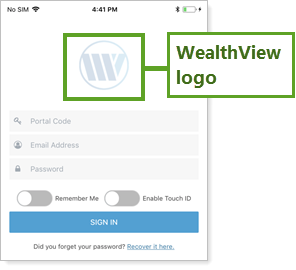
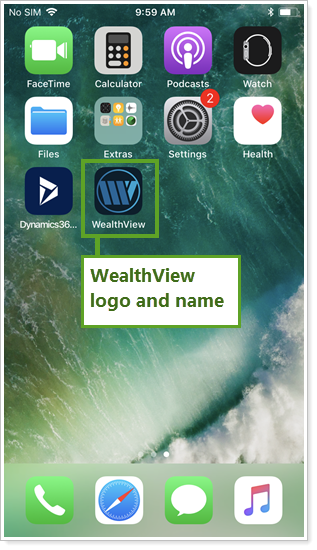
The table below highlights the differences between the standard app and the premium app.
| Standard | Premium | |
|---|---|---|
| Name in the app store | WealthView |
Determined by your firm
Example: Cherry Street Financial |
| Credentials required for client login |
Client enters:
|
Client enters:
|
| Login screen logo |
WealthView logo created by Tamarac
|
Determined by your firm
|
| Shortcut icon |
Standard
|
Determined by your firm
|
| Portal theme | Determined by your firm | Determined by your firm |
| Cost |
|
|
| Additional setup requirements | None | Work with Tamarac Account Management to sign mobile app paperwork and create custom look and feel. Learn More >> |
| Download availability | Immediately | Some delay as app is created for your firm |
| Features (if included in the client view) |
|
|
When the premium app is complete, Tamarac will make it available in the Apple App Store and the Google Play Store for you.
Steps for Getting a Premium App
Contact Tamarac Account Management at TamaracAM@envestnet.com. They will assist with working through the process of creating a premium app.
To create a premium account you will need developer accounts at Apple and Google. For detailed steps on how to create developer accounts with Google and Apple, see Create a Developer Account for the Mobile App.
Step One: Contact Account Management
Contact Tamarac Account Management at TamaracAM@envestnet.com. They will assist with:
-
Updated contract paperwork.
-
The additional fee.
If your firm already has a premium app, there will be no additional changes to your contract or billing. However, you will still need to work with Account Management to create your firm's premium app.
Step Two: Provide Files to Tamarac
You will work with Tamarac Account Management to generate:
-
Branded image for the login screen.
-
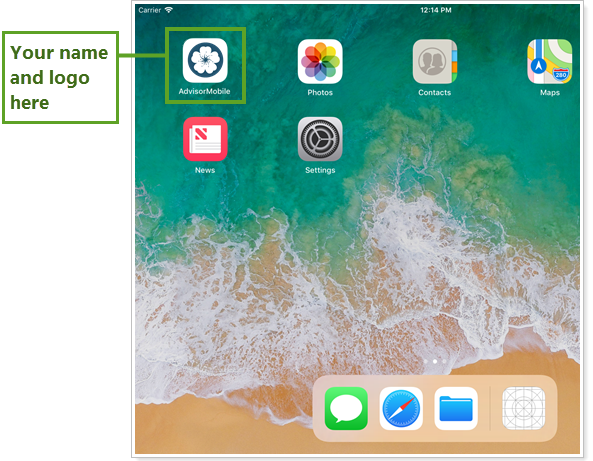
Name for the app. This appears in the app store and on the shortcut.
-
Icon image. This is the shortcut image the user sees on their screen.
Step Three: Create Developer Accounts for App Stores
Each app must be associated with its specific firm in Google Play and the Apple App Store. To do this, your firm must create a developer account that the app is then associated with.
This involves the following steps:
-
You create developer accounts for Google and Apple.
-
You forward developer-related emails to Tamarac.
-
Tamarac manages the process of adding your app to the store using your developer account.
For detailed steps on how to create developer accounts with Google and Apple, see Create a Developer Account for the Mobile App.
-
Step Four: Tamarac Adds App to App Store
Tamarac creates the unique, branded app for you. When you are satisfied with it, Tamarac adds the app to the Apple App Store and the Google Play Store.
Once the app is in the Apple App Store and the Google Play Store, your clients can search for and download the app.
For more information, see Manage the Mobile App.
Client Login With the Premium App
Unlike with the standard app, your clients do not need to enter a portal code when logging in to your branded app. Instead, clients log in using any of the available login methods:
-
Email address and password
-
Fingerprint (Touch ID, if available)
-
Face (Face ID, if available)
For more information, see Mobile App Login Options and Manage the Mobile App.
View Mobile App as Client
The premium app does not allow firm users to log in and view the mobile app as a client. To view a mobile app as a client, use the standard app.
Firm users will only have access to view the mobile app for users they have permissions to. If you can't see a client in the mobile app list, confirm that you have permission to view that client.