
Contents
|
Customize the Account Display Configuration Default Configuration for New Accounts Fixed Income Display Configuration |
Introduction
On the System Settings page, you can customize settings such as the display of your accounts and the PDF batch size.
For more information on system-wide settings for rebalancing and trading, see Learn More About Rebalancing System Settings.
Account Benchmark Display
The Account Benchmark Display section allows you to:
-
Enable or disable the display of benchmarks within reports. For more information, see Benchmarks.
-
Set the default display name for benchmarks when it is used in reports.

For more information, see Account Benchmark Display.
Customize the Account Display Configuration
The Account Display Configuration settings on the System Settings page allow you to set how accounts are displayed on dynamic reports. You can change which details about the account show when you view accounts. This allows you personalize the way you differentiate between accounts.
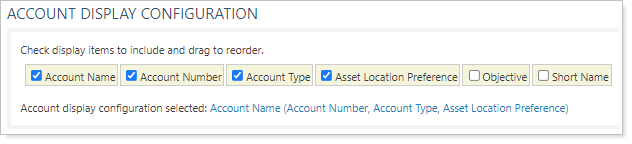
For more information, see Customize Account Display Configuration.
Client Display Configuration
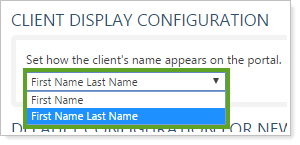
This setting lets you set how a client's name is displayed on the client portal.
-
To display the client's full first and last name, choose First Name Last Name from the list.
-
To display only the client's first name, choose First Name from the list.
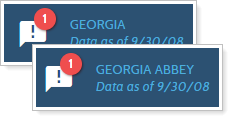
The First Name and Last Name fields must be filled in on the Client Profile panel to use this customization.

Default Configuration for New Accounts
You can select the following for your new accounts:
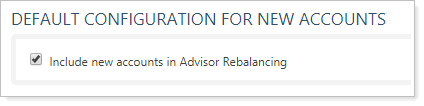
This check box determines whether new accounts can be included in rebalancing and trading activity.
Dual Factor Authentication
Dual factor authentication protects against unauthorized logins or account break-ins. You can require advisors to answer challenge questions if they sign in from an unrecognized device. This is a firm-wide setting, so if you enable this feature, all advisors will be required to answer the challenge questions.
To configure which multifactor authentication methods are available for your firm users and clients:
-
On the Setup menu, click System Settings.
-
Under Multi-Factor Authentication, select one or more of the following authentication methods:
-
Enable one-time passcode (OTP) via email. Users receive a verification code by email each time they sign in.
-
Enable SMS via text. Users receive a verification code to their configured phone number. Available for firm users only.
-
Enable Authenticator App. Users receive a verification code through the authenticator app.
-
Disable "Remember this device". Users must complete MFA every time they sign in.

-
-
Select Save.
Dynamic Report Disclosure
To limit your liability, you can add compliance disclosures to reports and bulk data exports.
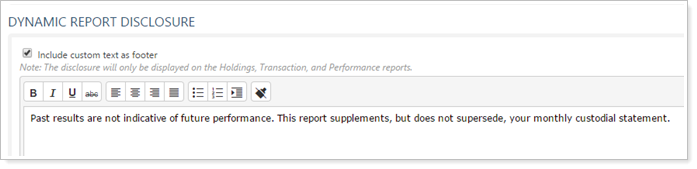
For more information, see Dynamic Report Disclosure.
Fixed Income Display Configuration
You have the option to include the maturity date and annual income rate in the fixed income description for fixed income securities.
| With Long Description... | Without Long Description... |
|---|---|

|
|

The information we include is based on the extended description you set up in PortfolioCenter.
For more information, see Fixed Income Display Configuration.
Managed/Unmanaged Assets Labels
When you create unmanaged assets, Tamarac defaults to labeling them Managed Assets and Unmanaged Assets. If you want, you can change the terminology used in your reports. For example, you may prefer to change the default terms Managed Assets and Unmanaged Assets to Supervised Holdings and Unsupervised Holdings.

For more information, see Customize Terminology for Managed/Unmanaged Assets.
PDF Batch Options
When you generate PDF reports for a large number of accounts, Tamarac Reporting combines the individual PDF files in a ZIP file.

For more information, see PDF Batch Options.
The Intraday Pricing Settings allow you to enable or disable intraday pricing (15 min. delayed), as well as changes settings related to intraday pricing. These settings are available for those of you who've enabled intraday pricing. For more information, see Intraday Pricing.
Notes
Contact Account Management at TamaracAM@envestnet.com to enable intraday pricing for your firm.Once enabled by Account Management, you must use these Intraday Pricing Settings to enable intraday pricing and choose your update interval.
Intraday Pricing Settings
The following settings and fields are available under the Intraday Pricing Settings heading on the Rebalancing System Settings page.

Enable Intraday Pricing
Select or clear this option:
| Setting Option | More Information |
|---|---|
| Selected | Tamarac Trading will use intraday pricing data when trades are updated or recommended. |
| Cleared | Tamarac Trading will not use intraday pricing data and instead will list the previous day's close price. |
Price Update Interval
Choose the combination of Hours, Minutes, and Seconds to represent how often Tamarac Trading will update prices. For example, an interval set at Hours00, Minutes15, and Seconds00 will update every 15 minutes.
You can reduce the number of requests made by increasing the Price Update Interval. The time interval specifies how old a security price can be.
Month-to-Date Requests
This read-only field lists the number of requests for intraday prices made month-to-date.