
Contents
Rebalance Summary
Introducing the New Spreadsheet View
In our continuing efforts to improve your trade review experience, we updated the Rebalance Summary report to include the new Spreadsheet View option. This updated view allows you to take more trade actions and review more information in one location. No need to load other pages or click away. One report lets you review more information to help with your trading tasks.
Previously, you could use two main reports to review trades and their impact to an account or group: the Rebalance Summary and Trade Summary reports. In general, the Rebalance Summary showed initial and post-rebalance data in a holistic way. The Trade Summary showed this information focused on the individual trades. In addition, you could take some trading actions on the Trade Summary that you couldn't take on the Rebalance Summary, such as selecting individual lots for trade. With this release, we streamline your workflow by letting you access all those features in one place.
With spreadsheet view, you can do the following:
- Review and edit at the trade level
- Review high-level, holistic initial and post-rebalance data
- Evaluate individual trades
- Select individual lots to trade
- And more...
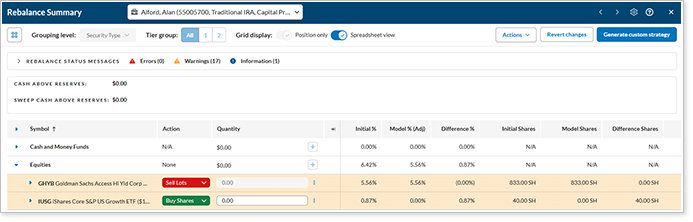
To toggle between the standard view and spreadsheet view, click Spreadsheet View at the top of the report:

Now you can view the Rebalance Summary at the individual trade level. Use the Action column to view or change the trading action, including these options:
- Buy ($, Shares, or % of Account)
- Sell ($, Shares, or % of Account)
- Sell Lots
- Sell All
- None
In the Quantity column, you can view or adjust the trade quantity. In addition, use  to open a menu with the following trade actions:
- Add/Edit Order Note
- Hold Trade
- Remove Hold
- Revert Changes
Improvements to the Rebalance Summary Based on Your Feedback
We heard your feedback and made some smaller improvements to the Rebalance Summary to make it easier to use:
-
Drop-down list.At the top of the report, you can switch between individual accounts and groups using a drop-down list. We improved the list so that it expands to accommodate longer account or group names. This helps you see which account or group you're viewing and reduces confusion when there are several accounts with similar names.
-
Scroll within the cash information box.In some cases, especially when viewing the report for a group, the cash information on the right side of the report can be long. We added the ability to scroll within the cash information box, so you won't have to scroll through the entire report in order to view all of the cash information.
-
Scroll the report when generating a quick trade.When you generate a quick trade, a pop-up appears so you can create the trade. We heard that some of you want to continue to view the report behind the window, so we added the ability to scroll while you're creating a quick trade.
-
Filter quick trades by model.We added a filter to the quick trades pop-up that lets you filter on an individual model. When you apply this filter and then search for a security, your search is limited to the securities within that model or any alternate security sets associated with that model. This makes it easier to find the security you're looking for.
[INSERT SCREENSHOT]
Learn More - Watch the Release Video