
Contents
|
Create Envestnet Identity Direct Login credentials Install the Claude for Financial Advisors plugin |
Introduction
If your firm uses Tamarac and Anthropic's Claude, you can access Tamarac data directly from Claude using natural-language prompts. With this integration, you can search for an account, household, or clients by name or ID, then review available details such as account values, custodian information, reconciliation status, and household relationships.
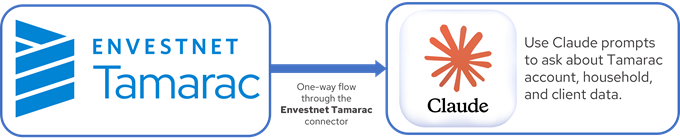
This integration is read-only. This means that your Claude prompts can't create, change, or delete data in Tamarac. Tamarac remains the source of record.
This page provides steps for how to set up the integration with Claude and information about what Tamarac data points you can query.
Before you start
Your firm must:
-
Have a contract with Envestnet that includes a signed authorization covering how Claude reads and processes your data.
-
Be set up in Envestnet Identity with Direct Login enabled for your firm and for your individual account.
-
Have a Claude Enterprise account.
You must have:
-
An Envestnet Identity Direct Login created.
-
The Claude for Financial Advisors plugin installed in your Claude instance.
-
The Envestnet Tamarac connector installed in your Claude instance.
-
One or more Tamarac accounts with access to the relevant firm data.
Once configured, you can access available Tamarac data using natural-language queries in Claude.
Integration features
Limitations
When using this integration, keep the following limitations in mind:
-
Claude never has open access to Tamarac's data. Claude can't create, change, or delete anything in Tamarac.
Example
You can't use Claude to rebalance accounts, change models, add an account to a household, or edit a client's address.
-
This is a one-way data flow, from Tamarac to Claude. Tamarac remains the source of record.
-
The integration respects your existing Tamarac permissions. You can't use Claude to see records you otherwise couldn't access in Tamarac.
-
You must search for a specific name or ID. You can't list or bulk-search accounts, clients, or households.
-
This connector does not provide holdings or performance data.
Available data points
Once configured, you can prompt Claude for the following Tamarac data points. Only the data points listed are available.
| Tamarac area | data point |
|---|---|
| Household | Name |
| Household | Mailing address |
| Household | Which accounts it contains |
| Household |
Total value NoteCalculated as the sum of account values in the Household. |
| Account | Name |
| Account | Account number |
| Account | Account type |
| Account | Custodian |
| Account | Tax status |
| Account | Discretionary status |
| Account | Reconciliation status |
| Account | Last reconciliation date |
| Account | Close date |
| Account | Mailing address |
| Account | Current value |
| Account | Current as-of date |
| Account | Primary owner's name |
| Account | Primary owner's email address |
| Client | Name |
| Client | Which household they belong to |
For more information about these Tamarac record types, see Introduction to Accounts, Groups, Households, and Clients.
Set up the integration
The following is the process to set up the Tamarac connection in Claude.

|
|
1. |
Create Envestnet Identity Direct Login credentials > Create a credential separate from your regular Tamarac username and password. It exists specifically to connect Claude and other tools to your Tamarac data. |
|
|
2. |
Install the Claude for Financial Advisors plugin > You must have the Claude for Financial Advisors plugin in your enterprise version of Claude to access Tamarac data. |
|
|
3. |
Install and authenticate the Envestnet Tamarac connector > Install the connector and enter your Direct Login credentials to allow Claude to access your Tamarac data for about one hour at a time. |

Create Envestnet Identity Direct Login credentials
Envestnet Identity is an enterprise shared service that provides a single set of credentials for accessing multiple Envestnet platforms and applications.
To connect Claude with Tamarac, you create Envestnet Identity credentials that are separate from your regular Tamarac username and password. These credentials exist specifically to connect Claude and other tools to your Tamarac data.
To set up your Direct Login credentials:
-
Submit a service request to your Tamarac service team asking for access to the Claude connector. After processing your request, the service team will send you an account activation email.
-
In the account activation email, follow the steps to confirm your email, set up a Direct Login password, and register multi-factor authentication (MFA) with an authenticator app. For steps, see Create an Envestnet ID Direct Login.
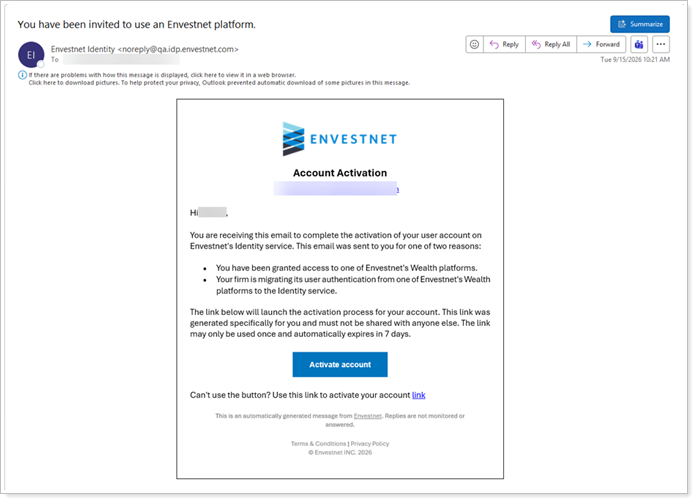
The activation email link is unique to you and expires after seven days. Do not share the link with other users. If it expires, contact your Tamarac service team to request a new activation link.
-
3. After you successfully validated the authenticator app, your Direct Login credentials are set up and ready to use.
Install the Claude for Financial Advisors plugin
You must install the Claude for Financial Advisors plugin in your Claude instance before you can access Tamarac data. Visit Claude for Financial Advisors (external link, opens in a new tab) to download.
For steps to install the plugin, enter the following prompt in your instance of Claude:
How do I add the Claude for Financial Advisors plugin from github.com/anthropics/claude-for-financial-advisors to my instance of Claude?
Install and authenticate Tamarac connector in Claude
To set up the connection between Tamarac and Claude:
-
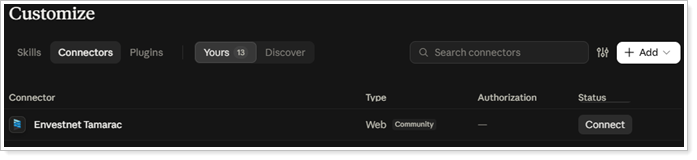
In Claude, find the list of connectors.
-
Under Connectors, find the Envestnet Tamarac connector.
-
Select Connect.
-
Sign in with your Direct Login username and password or passkey.
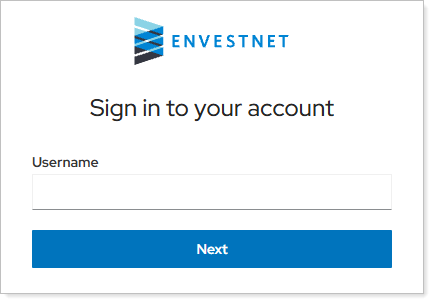
Once you sign in, the connector is active.
Note: Authenticate with a passkey
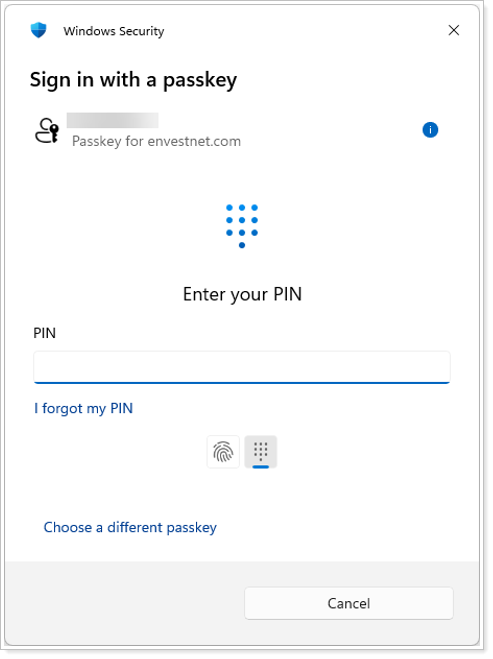
A passkey lets you use your device’s supported authentication method, such as a fingerprint, facial recognition, or PIN, instead of entering your credentials and multi-factor authentication during future sign-ins.
The first time you connect, enter your Direct Login username and password and complete multi-factor authentication. After successfully signing in, if enabled for your firm, you may also be prompted to set up a passkey.
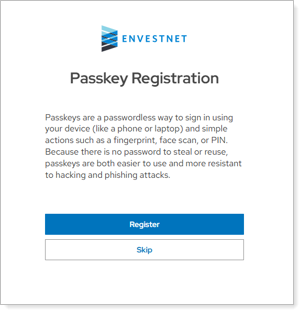
If you set it up, the passkey replaces your password and multi-factor authentication when you sign in to future sessions.
Access Tamarac data through Claude
Once set up, you can access Tamarac data in Claude by using prompts that ask about Tamarac-specific data.
Examples
The following are the types of prompts you can use in Claude that give you results using Tamarac data:
Show me accounts in the Smith household.What's the current value of account 12345?Who owns account 678910?Can you find my client Georgia Abbey?What household is Michael Abbey in?What's the total value of the Abbey household?
Every time you use the Tamarac connection in Claude, you first have to enter the Direct Login credentials. Your authenticated session lasts for approximately one hour and refreshes automatically while you’re actively using the connector. If your session is inactive for more than an hour, sign in again with the same Direct Login credentials before resuming.