
Contents
Introduction
Cash reserves in Tamarac Trading allow you to set aside specific amounts of cash for any cash needs for the client. Cash reserves can be created for one-time or recurring cash needs for the client, such as Required Minimum Distributions (RMDs), DCA security purchases, management fees, taxes, or client expenses.
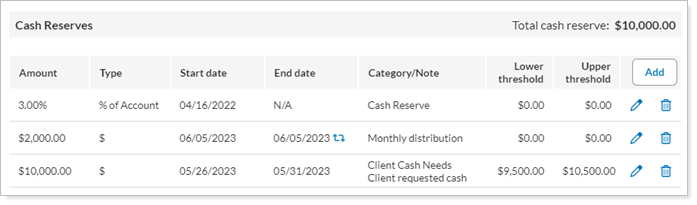
Cash reserves give you the following benefits:
-
Adherence during Rebalance.Tamarac Trading will always seek to meet cash reserves, plus or minus any thresholds you've established. Because of this, cash reserves are a powerful tool you can use to ensure the client's cash needs are always met.
-
Fewer models.With cash reserves, you don't have to add additional models to account for cash needs.
-
Asset location.Cash reserves can also be used to specify where cash is held in asset location within groups because you can establish cash needs at the individual account level rather than at the group level.
Actions to Avoid
-
Do not add a cash reserve to an SMA because Tamarac Trading will look to raise cash and all cash holdings will be counted towards the SMA's dummy ticker rather than any cash reserves you've set.
-
Do not set cash reserves in accounts where you want to maintain a margin balance.
Cash Reserves in a Rebalance
You can view cash information, including reserve amounts, on the Rebalance Summary. This will give you a fuller picture of reserve cash during the rebalance process.
Rebalance Summary
The Rebalance Summary report shows cash information at the top of the report using the following widgets:
Account Information Widget
The Account Information widget gives you an at-a-glance view of valuable cash information you'll need to consider like rebalance status, model deviation, account value, T+1 cash, fees, and commissions.
Reserve Summary Widget
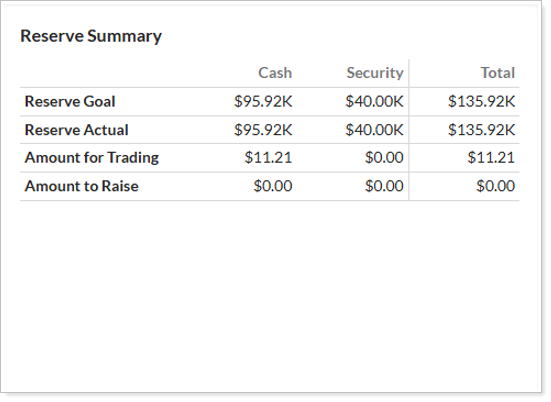
The Reserve Summary widget shows an at-a-glance view of valuable cash information you'll need to consider such as reserve goals, cash available to trade, and the cash amount to raise.
Reserve DETAIL Widget
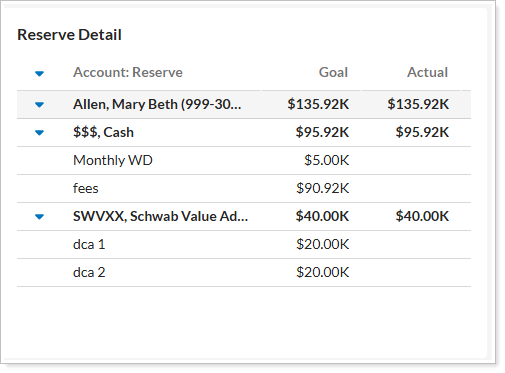
The Reserve Detail widget gives you insights into the reserves set for the account you're viewing. Cash reserves are displayed as $$$. Security reserves appear with their security symbol.
The reserves information section in the Spreadsheet View of the Rebalance Summary gives you the status of your cash reserves.

For more information about account reserves and cash management, see Learn More About Cash Management.
Create a Cash Reserve
To add a cash reserve, follow these steps:
-
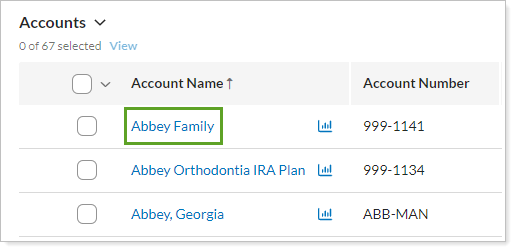
On the Accounts menu, click Accounts.
-
Click the account where you want to add a cash reserve.
-
Select Cash Management in the Rebalancing tab.
-
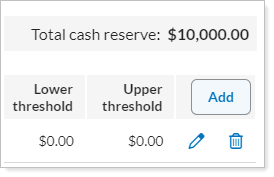
Click Add. This opens the Cash Reserve Settings dialog box.
-
Complete the following information:
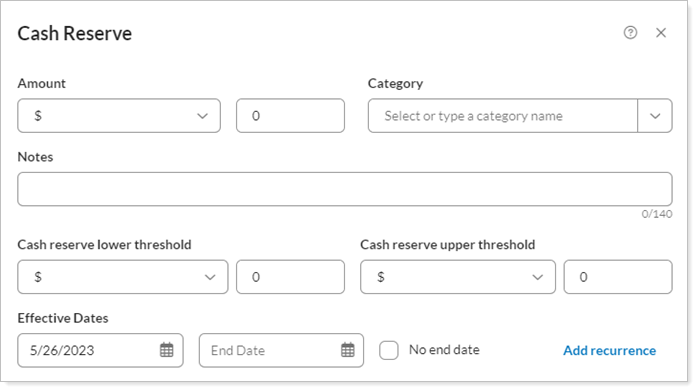
Setting More Information Amount Designate the amount you want set aside for the reserve. Select one of the following to designate the amount:
-
$ (used to designate a fixed dollar amount)
-
% of Account
-
% of Cash
-
% of Rebalancing Group
Category Type the classification for this cash reserve. You can choose any category you want and categories you've used before will automatically populate in the Category list.
Examples may include management fee, quarterly taxes, RMD, DCA, etc.
Notes Add an optional note to add information to the cash reserve. For example, you can specify an RMD date or information about a fee change.
Cash Reserve lower threshold Add an optional lower threshold amount for the cash reserve. This determines how far actual cash can fall below the target cash reserve before Tamarac Trading triggers sell recommendations to raise cash.
The formula below shows the calculation to find the minimum cash amount Tamarac Trading will permit before recommending trades.
Cash reserve amount (target) – Reserve lower threshold
For example, an account has $25,000 in total beginning cash, a $35,000 cash reserve, and a lower tolerance of 25% of the reserve, or $8,750.
If you take the difference between the cash reserve ($35,000) and the lower threshold ($8,750), you will end up with $26,250. This is the minimum cash amount needed before recommending trades. Since the starting cash of $25,000 is less than $26,250, Tamarac Trading will seek to raise the remaining $10,000 so the cash meets the cash reserve ($35,000).
Cash Reserve upper threshold Add an optional upper threshold amount for the cash reserve. This determines how far actual cash can rise above the target cash reserve before Tamarac Trading triggers buy recommendations to invest the surplus.
The formula below shows the calculation to find the maximum cash amount Tamarac Trading will permit before recommending trades.
Cash reserve amount (target) + Reserve upper threshold
It's best practice to make your upper threshold 0. This allows all investable cash to be traded and prevents excess cash in the account rather than in the market.
Effective Dates Enter the Start Date and the "effective to" or End Date for the cash reserve.
-
If you do not specify a Start Date, the start date will take effect immediately.
-
If you do not specify an End Date, the cash reserve will always apply.
No end date Set this option when the cash reserve will always apply.
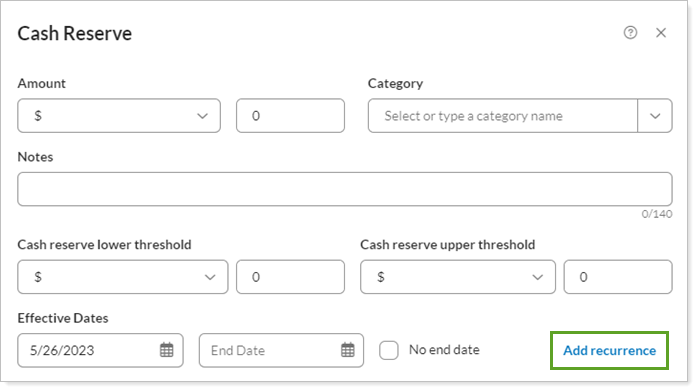
Add recurrence Select Add recurrence if you want to create a recurring cash reserve. For the steps to do this, see Add Recurrence. To keep the recurrence going forever, select No end date.
-
-
Select Update.
Notes in Cash Reserves
When you add a cash reserve, you can add a note about the cash reserve in the Notes field—for example, you may add a note to let others know that the client needs to take an RMD by a particular date.
You can see the notes you've added for cash reserves when you:
-
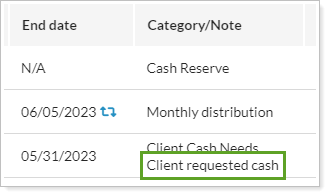
Cash Management.On Cash Management, within the account's settings, the note will appear beneath the name of the category.
-
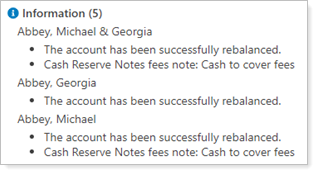
Rebalance an Account.When you rebalance an account, the cash reserve note will appear as a rebalance status message on the Rebalance Summary report.

-
Rebalance a Group. When viewing groups, the cash reserve note will appear for all underlying accounts.
For more information on notes, see Overview of Notes in Tamarac Trading.
Cash Reserves on the Dashboard
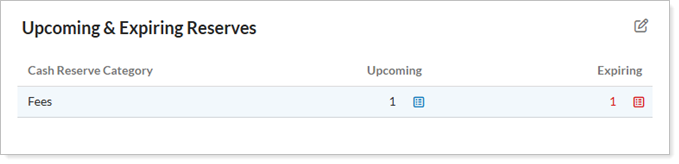
The Upcoming & Expiring Cash Reserves widget shows a list of all upcoming or expiring cash reserves, along with their corresponding categories, for the date range you specify. You can view underlying accounts immediately without navigating away from the dashboard, or add page links to customize the widget.
You can also adjust the My Information widget to either include or exclude cash reserves as part of your AUM calculation.
Applicable Settings
The Rebalance Settings on the Rebalancing System Settings page allow you to change how you ware warned about cash and security reserves during a rebalance using the Only warn if reserves cannot be met option. When you select this option, Tamarac Trading only warns you during a rebalance if reserves cannot be met. If you clear this option, Tamarac Trading prevents a rebalance if reserves cannot be met.
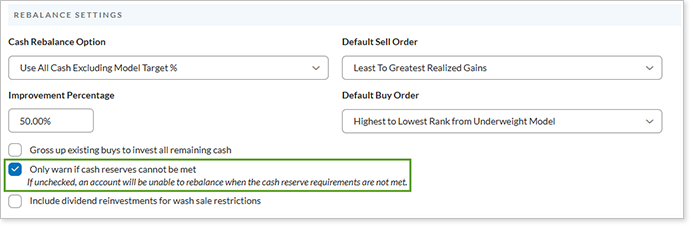
For more information on this setting, see Rebalance Settings.
Recurring Cash Reserves
When creating a cash reserve, you can add a recurrence. Before setting up a recurring cash reserve, keep these details in mind:
- Tamarac Trading won't adjust recurrences if they occur on weekends, so verify that dates occur on days where trading can take place.
- Recurring cash reserves don't reserve cash between duration.
It's best practice to use recurring cash reserves if the recurrence is quarterly or less frequent.
To create a recurring cash reserve, follow these steps:
-
Create a new cash reserve and fill in the required fields for the cash reserve.
-
On the Cash Reserve Settings dialog box, select Add recurrence. For the steps to complete the values, see Add Recurrence (Account Reserve).
-
Select Update.
Cash Column Definitions
The following definitions may help you differentiate various cash reserves columns and fields you see in Tamarac Trading :